Documentation pages
Using symcc
For contributors
On this page
- Install
- Install in Claude Code
- Install in Claude Code in VS Code
- Install in OpenCode
- Install in Copilot CLI
- Install the symcc extension in VS Code or Cursor
- Claude Code
- In VS Code
- Using symcc in OpenCode
- Install details in OpenCode
- The lead in OpenCode
- How workers run in OpenCode
- The board panel and the strip
- What differs from Claude Code
- How it works inside
- Using symcc in Copilot CLI
- Install details in Copilot CLI
- Show symcc's status line in Copilot's terminal
- Your own model provider (BYOK)
- What works and what doesn't yet
- Building the extension
- Using symcc in VS Code and Cursor
- How it finds symcc
- The agents
- Using it
- Building it
- Chat apps
- Using symcc from Slack through DAM
- From a chat app
Clients #
symcc runs inside a program you already use: Claude Code (in the terminal or VS Code), OpenCode, Copilot CLI, VS Code or Cursor through the symcc extension, and it can be reached from chat apps. One section each.
Install #
Pick the program you use. Each section below has the same five parts: what you need first, the commands, how to start symcc and see the board, how to update, and the most common trouble. Every way needs git.
| Where you work | Whose agents | Steps |
|---|---|---|
| Claude Code in the terminal | Claude | Install in Claude Code |
| Claude Code in VS Code (the Claude Code extension) | Claude | Install in Claude Code in VS Code |
| OpenCode | any model OpenCode knows | Install in OpenCode |
| Copilot CLI | GitHub Copilot's | Install in Copilot CLI |
| VS Code or Cursor, with the symcc extension | Cursor's or GitHub Copilot's | Install the symcc extension in VS Code or Cursor |
After any of them, keep the board out of git in each project: echo ".symcc/" >> .gitignore.
Install in Claude Code #
You need first: Claude Code (symcc is built and tested with 2.1.319;
claude --versiontells you yours) and git. There is no build step.Commands (in any folder):
claude plugin install symcc --marketplace kourgeorge/symccTo try it from a clone instead, with nothing installed, see the reference.
Start it and see the board:
cdinto your project and runclaude. Type/symcc-initonce in the folder you want the board in; it makes the board and opens the panel. Later,/symccopens the board again.Update (then start Claude Code again):
claude plugin marketplace update symcc && claude plugin update symcc@symccCommon trouble: no panel? The terminal is too narrow: make it wider, or run
/symcc. More fixes: Troubleshooting.
Install in Claude Code in VS Code #
Use this to run Claude's agents inside VS Code. You need only the Claude Code extension and the symcc plugin; you do not need the symcc editor extension.
You need first: VS Code with Anthropic's Claude Code extension, the
claudecommand (Claude Code itself) and git. The extension runs the real Claude Code, so it loads the same plugins as theclaudecommand.Commands (in VS Code's terminal, in any folder):
claude plugin install symcc --marketplace kourgeorge/symccStart it and see the board: open your project folder in VS Code, open the Claude Code panel, and type
/symcc-initonce (later,/symcc). The board there is clicked, not typed: see In VS Code.Update: the same as in the terminal,
claude plugin marketplace update symcc && claude plugin update symcc@symcc, then reload the VS Code window.Common trouble:
/symccis unknown? The plugin was installed after the panel started: reload the window (Developer: Reload Window).
Install in OpenCode #
You need first: OpenCode 2.3 or newer and git. Homebrew's
opencodeis the old 1.x line, which can't load symcc; get 2.x withnpm install -g @opencode/cli, and check withopencode --version.Commands: pick one of the two ways.
With no clone (in any folder):
opencode plugin add github:kourgeorge/symccOr from a clone (in the folder you want the clone in; the script links it into OpenCode's plugins folder):
git clone https://github.com/kourgeorge/symcc && sh symcc/scripts/install-opencode.shStart it and see the board:
cdinto your project, runopencode, open a session and type/symcc-initonce. The board panel opens next to the session;/symcc-boardopens or closes it later.Update:
opencode plugin updatefor the first way;git pullin the clone for the second. Then restart OpenCode.Common trouble: "Plugin failed": check
opencode --versionsays 2.3 or higher. More in Install details in OpenCode.
Install in Copilot CLI #
You need first: GitHub Copilot CLI (
npm install -g @github/copilot, thencopilot loginonce) and git. symcc was tried with Copilot CLI 1.0.114.Commands (in any folder):
copilot plugin marketplace add kourgeorge/symcc
copilot plugin install symcc@symcc
Start it and see the board:
cdinto your project and runcopilot --experimental(extensions are still experimental; without it symcc does not load). Say yes when Copilot asks you to trust the folder, then type/symcc-initonce. There is no board panel yet:/symccprints the board as text in the chat.Update:
copilot plugin marketplace update symcc
copilot plugin update symcc@symcc
Common trouble: no
symcc_*tools and no/symcccommands? You started Copilot without--experimental, or said no to the folder trust question. More in Install details in Copilot CLI.
Install the symcc extension in VS Code or Cursor #
First, choose. The symcc editor extension runs Cursor's or GitHub Copilot's agents. If you want Claude's agents in VS Code, you don't need this extension: use Claude Code in VS Code instead.
Not in the Marketplace yet. The extension (kourgeorge.symcc) is not published to the VS Code Marketplace or Open VSX yet, so code --install-extension kourgeorge.symcc fails with "not found". Until it is, build it from a clone as a .vsix file (one file that holds the whole extension) and install that file.
- You need first:
- symcc installed by one of the programs above (Claude Code, Copilot CLI or OpenCode), or a clone of symcc. The extension brings no symcc of its own; it finds and runs that copy.
- VS Code 1.101 or newer, or a Cursor built on it.
- Node and npm (to build the file), and git.
- For the agents, one of these. Cursor's (the
symcc.agentssetting is"cursor", the default): setCURSOR_API_KEY, or have a saved Cursor login. GitHub Copilot's ("symcc.agents": "copilot"): install the Copilot CLI (npm install -g @github/copilot) and runcopilot loginonce.
Commands. Clone symcc if you have no clone yet (
git clone https://github.com/kourgeorge/symcc). Then, with<symcc clone>being that clone's folder:cd <symcc clone>/hosts/vscode && npm ci cd extension && npm ci && npx -y @vscode/vsce@4.1.1 package --out symcc.vsixThat writes
symcc.vsixin<symcc clone>/hosts/vscode/extension. Install it from that same folder, or give the full path from anywhere:code --install-extension <symcc clone>/hosts/vscode/extension/symcc.vsixIn Cursor, use
cursor --install-extensionwith the same full path. On a Mac, don't add--omit=optionaltonpm ci: it leaves out esbuild's Mac program, and the build fails with "Expected 0.25.12 but got 0.21.5".Once the extension is published, this one command will be enough:
code --install-extension kourgeorge.symcc(orcursor --install-extension kourgeorge.symcc).- Start it and see the board: open a project folder that is a git repository and click the symcc icon in the activity bar. Run symcc: Set up symcc in this project (or tell the lead
/symcc-init) once. - Update: pull the clone (
git pullin<symcc clone>), build and install the.vsixagain as above, then run symcc: Restart symcc. When you update the symcc plugin itself, run symcc: Restart symcc too. - Common trouble: the sidebar says symcc is not installed? Install it with one of the programs above, or point
symcc.pluginPathat your clone, then run symcc: Look for the installed symcc again. More in Using symcc in VS Code and Cursor.
Claude Code #
Claude Code is where symcc started, and where it has the most: the board panel, the band above the prompt, plan mode, sounds and voice. Install it as in Install in Claude Code; the board and tasks pages describe it.
In VS Code #
This is the board in the Claude Code extension (install it as in Install in Claude Code in VS Code). In the Claude Code extension's side panel, letter keys and ↑↓ do nothing: you click a button (or Tab to it and press Enter). So the board there has its own layout; the terminal's is unchanged.
- Header: the symcc logo (the clef, in the accent color) with one line beside it: the
name, version and folder, then the board mode as plain bold words (
⏵ auto merge). When another window drives the board, one notice row (no border) says so ("⚠ this window follows; /symcc-drive to drive from here"); click/symcc-driveto drive from this window. Under it the counts (● 2 doing · ● 6 to do · ● 1 waiting for you), each dot in its status color. Every line wraps, never cut. The setup facts (what the mode means, the branch, the tests and limits) are in the Live tab's Status section. - Tabs: one line of text:
Live,Tasks 20,Scouts 1,Settings. The tab shown is bold; the others are links, with their counts as plain words. No bar, no pill, no rule under them. Click a link to switch. - Style: only real actions are buttons (Approve, Retry, Save, Send, ...), with at most one main (primary) button on a page. Going somewhere is a link. Headings are plain bold words, counts are plain dim words, and there are no pills, rules or hint lines. Only the Tasks list's Backlog, Done and Dropped headings still fold. The labels of a label and value list share one column, 11 characters wide. A link in a row sits in a cell of a set width, so it never drops onto a line of its own.
- Live tab: plain bold headings (
Status,Tasks 17 backlog,Branches,Today) with the count as plain dim words. Nothing folds: no chevrons. One thin dim line separates each section from the next (none above the first or below the last, and a hidden section leaves no extra line). No blank rows.- Status: one row each. Mode (
⏵ auto merge · agents 0/3 busy, withchangeas a link that switches the mode), Scouts (the running ones, a link to the Scouts tab; "none running" otherwise), Branch (and which window drives), Tests (short, then the time limit and retries). - Tasks: what needs you first, then the running lanes, three lines each: the mark
(
▶, or✓for a just-merged one), the id (a link that opens the task) and the whole title (cut with…only when the panel is too narrow), then, indented under the title, the train drawn with real lines and the time at the right (3m,#2in the queue,merged 3m ago).try 2 · 3mshows the try only when it is above 1. Under it a dim numbers line (try 1/3 · ⌀ 2.7M (1.4×median) · worker 2.7M, as in the terminal, without the time) with the task type at the right end, lined up with the time; the type is dropped when the row is too narrow. The station names ("work check queue tests done", with "you" when a task waits for you) are drawn once above all the lanes, so every train lines up under them. There is no legend line. A waiting task hangs under its lane as one line. When nothing runs it says why; when all is done: "✓ All done · last merged T-93 20h ago", then Up next from the backlog with the first 3 backlog tasks (each opens its page) and "14 more in the backlog" (a link that opens the Tasks tab with Backlog open). The one main button,Tell the lead what to do next, puts "Next task: " in the prompt box. - Branches: one line each, no graph: the id (a link that opens the task) in a cell of a set
width, then its figures.
mainshows its newest commit and age (c1c1c1c · 2 min ago), a task its state and+3 commits · 1 behind, a merged onemerged 3m ago. A figure that does not fit is cut with…, never wrapped onto a second line. - Today: label and value rows: Results (
✓ 0 merged · ↺ 0 sent back · ✗ 0 failed, in green, yellow and red), Tokens (all of today's, then who spent them, all in one color), Agent time (and the cost when known), Per task, Hours (the day's token bars and the busiest hour), Yesterday, and 7 days. - Organizational memory
2 / 60: one line, with anAll noteslink that opens the page of notes.
- Status: one row each. Mode (
- Tasks: grouped under headings (Questions for you, Waiting for you, Review, Failed), each with
its colored mark and its count as plain dim words (
? Questions for you 2); doing and to-do tasks follow as one list with no heading (the task page's status is plain bold words in its color too), a blank line between them. Each task is one line: the ID (a link), its state cell (▶ 2m,? waiting for 5m,✗ failed 3m ago, lined up in one column per group), the whole title (cut with…only when the panel is too narrow), then dim words (the task type or role, the try, the question or why it failed). The search box is at the top; there is no mode switch here (it is on Live). A task that needs you starts with a●and has a bold title. The lead's questions look the same, in the warning color. Backlog, Done and Dropped are folded headings (▸ Backlog 3), closed until you click them. With nothing open the list says "All clear" and has one main button,Tell the lead what to do next, which puts "Next task: " in the prompt box (only when the box is empty). - Footer: on the VS Code Tasks tab there is no mode switch (it is on Live) and no search
box (the search is at the top of the list, filters as you type, with
Clear searchwhile a search is on). No key hints and no hint line on any page; buttons drop the key marks (Back, notBack (b)). - A task's page reads like a card. It uses the whole panel width and wraps every line,
never cutting it with "…". From the top: the page header (see the task page and the scout
page):
‹and aTasksbutton back to the list, the‹ 2 of 6 ›pager, the task ID and title as a heading, the state as words (the mark in its color, then dim words:◆in green, thenanswered: read it, for an answered investigation), the action buttons in their groups (one style, no red; the one main action, such asApprove,RetryorPause, is the primary button; needs review a button too), no divider. A scout's page does the same:Run nowis its primary button. What needs you comes next, each under a bold heading with its mark in its color (no box, no border): the Question for you (yellow?) with its answers as numbered links and a box for your own answer (a file request hasAllow filesandDon't allow); Why it failed (red✗); Waiting for your files (yellow). The Run now question and the role list have no box either. Only a text box you type in keeps its own frame. Then the sections, each under a plain bold heading: Details, the same labelled rows as the terminal and OpenCode task pages (Steps, Added, Role, Type, From, Why, Files, Into, After, …, Tries, Priority) as a label and value list that wraps (its labels share the 11 character column), each task it waits for a link that opens it; the Branch (the task's branch against main, as on the terminal, in the monospaced font); the Answer of an investigation; What to do (the details, drawn as Markdown); the Changes of a task in review (and, once merged, of a done task); Timeline, a list with the newest first (a mark on one line down the left, when it happened, then the whole line; merges in green, failures in red), the newest 10 withShow allfor the rest; then one fold, closed until you click it, with the sum of the tries (as the Runs heading on the terminal):▸ Time and cost 2 tries · 40m · 11.6k tokens; and last the latest Report as Markdown: its first lines, withShow allfor the rest and a button for each try. - Scouts: one row per scout, with the same parts in the same order as the terminal list:
its icon, its name (a link that opens it), how often it runs, its state (
running now,paused,next in 3h,on demand),last:with the start of its last report (last: found 2: …,last: nothing) and its model. A row never wraps: its end is cut with "…" to fit. Under the list:+ New scout. With no scouts yet, a short how-to as plain text (no box) and+ New scoutas the main button. - A scout's page: the page header:
‹and aScoutsbutton, and the pager; the name and its summary; when it runs, the next run, its model and the last run as plain words (no pills); buttonsRun now(the main button; not while it runs),Edit, andPauseorResume(⏸ pausedbeside it while paused); then its Instructions as Markdown, its Runs (one line per run, its time a link that opens its report), its Results, and its File (headings are plain bold text). - Settings: every group is a plain bold heading (Work, Checks before merging, Workers, Scouts, Board
and alerts) with its settings under it, each on its own row. The setting names share one label
column, and the value sits beside it. A setting with a fixed set of choices (mode, notify, checker,
scout_findings, tests_with_changes, open_on_start, enabled) is a drop-down: pick a value and it is
saved at once. Numbers and the test commands are boxes: type and press
Save(a wrong value says why and saves nothing; an empty test commands box clears them). Under each row, one dim line says what the setting does (no default or range). Roles and Task types are link rows with their count beside them; they open their pages. No help sentence under the list, no key hints. - Roles and Task types: the page title is plain bold text (not blue), then the table. Where a
role or task type comes from and
offare plain dim words, not pills: the table's FROM column saysbuilt-in,changed,added by youoroff, and a task type's own page saysbuilt-in,replaced,addedoroff. Remove asks inline, with no box: the question, aYes, removebutton and aCancellink on one line.
Using symcc in OpenCode #
symcc also runs in OpenCode 2.x (2.3 or newer). The older 1.x line has a different plugin system and is not supported (opencode --version tells you which one you have). This is a first version: the board, the lead, workers, scouts and the guard work; a few things are missing or differ from Claude Code (see What differs from Claude Code). The Claude Code plugin is not changed by any of this, and both can be used on the same project.
Install details in OpenCode #
The short steps are in Install in OpenCode. The details:
What you need: OpenCode 2.3 or newer, git, and a copy of symcc. Nothing else is installed: symcc's opencode/ folder has no packages of its own. Its board screen (the panel and the strip above the prompt) is drawn with Solid and OpenTUI, and OpenCode's window gives those to its plugins itself, so the board uses the very same copies as OpenCode's window (two copies of Solid would not work together).
Getting OpenCode 2.x: install it from npm, npm install -g @opencode/cli (the command is still opencode). Homebrew's opencode is the old 1.x line, which has a different plugin system and can't load symcc. Run opencode --version to see which one is on your PATH: it should say 2.3 or higher. The install script warns when it finds an older one.
From a copy of symcc on your machine (a clone, or the folder you already work in), one command:
git clone https://github.com/kourgeorge/symcc && sh symcc/scripts/install-opencode.shThe script links symcc's opencode/ folder into OpenCode's plugins folder for you, ~/.config/opencode/plugins/symcc (or $XDG_CONFIG_HOME/opencode/plugins/symcc), so OpenCode loads it in every project. Nothing is copied or downloaded and there is no build step: OpenCode runs symcc's TypeScript files as they are, so a git pull in that folder updates symcc (restart OpenCode after it).
- For one project only:
sh symcc/scripts/install-opencode.sh --project <your project>puts the link in<your project>/.opencode/plugins/symccinstead. Add.opencode/plugins/to that project's.gitignore, since the link points into your own machine. - Check it: start OpenCode in your project and run
opencode plugin list. OpenCode 2.3 lists the linked folder with no ID of its own (ID: - VERSION: local SOURCE: <config>/opencode/plugins/symcc), sosymccshows only in the folder path. - If OpenCode says "Plugin failed" for symcc's folder: check
opencode --versionfirst (symcc needs 2.3 or newer). The board screen's error names the package it couldn't get from OpenCode (solid-jsor@opentui/solid); OpenCode's log has it (~/.local/share/opencode/log/). Only the board screen stops then: the lead, its tools and the workers run in OpenCode's server part, which loads on its own. - Remove it: the same command with
--remove(and--project <folder>if you used it). - Keep the board local, as in Claude Code:
echo ".symcc/" >> .gitignore.
Or with OpenCode's own command, with no clone:
opencode plugin add github:kourgeorge/symccopencode plugin add takes an npm package or a git address with a package.json at its top. symcc's repository has one at its root (it only points OpenCode at opencode/server.ts and opencode/tui.ts; it installs nothing, and the Claude Code plugin doesn't use it). This works: in a scratch run with OpenCode 2.3.2, it printed Plugin "github:kourgeorge/symcc" installed and added to ~/.config/opencode/opencode.json, adding "plugins": ["github:kourgeorge/symcc"] there, and put symcc's files in OpenCode's cache, ~/.cache/opencode/npm/git-symcc-<hash>/<number>/node_modules/symcc. OpenCode then loaded opencode/server.ts from there with no "Plugin failed", and opencode plugin list showed symcc 932aaf3 github:kourgeorge/symcc (the version is the commit it fetched).
- The first
opencode plugin listcan say "No plugins found": it starts OpenCode's background service, which is still loading plugins then. Run it again. - Updates: this copy doesn't follow
git pull;opencode plugin checkandopencode plugin updatefetch a newer one. Remove it withopencode plugin remove github:kourgeorge/symcc. - Use one way, not both: with the script's link and this entry both in place, OpenCode can load two copies of symcc (not tried).
The lead in OpenCode #
The lead is the OpenCode session you type in, in your project's folder (or a folder inside it). There is nothing to start: talk to it as you would in Claude Code ("add a dark mode toggle", "what's going on?"). symcc gives it its guide on every request, and its tools as normal OpenCode tools (symcc_board, symcc_add and so on). Board updates come into its chat as a message: a normal one waits until its turn ends, and an urgent one (a worker needs you, or its time is up) is taken in mid-turn. When one of symcc's agents ends, OpenCode also posts its own "subagent completed" message; the lead is told to act on symcc's update only.
The slash commands are the same as in Claude Code: /symcc (the board), /symcc-drive, /symcc-settings, /symcc-stats, /symcc-disable, /symcc-help and the rest. They work the same in OpenCode's terminal and in its web page (opencode web). A command you type answers in a normal chat message, so its full text shows in both (OpenCode would show a quieter note only as a one-line label, and the web page's compact timeline hides those). That message also starts a short lead turn, and it tells the lead no reply is needed. The board panel's own key presses (approve, pause, answer...) stay quiet: their answer is a note that doesn't wake the lead. Opening the board panel (/symcc-board, and the panel opening after /symcc-enable) works only in the terminal; on the web page /symcc shows the board as text.
symcc's board runs in OpenCode's server, not in its window. By default the window uses OpenCode's background server (opencode --standalone starts a private one that ends with the window), so the board and its workers can keep running after you close the window. opencode service stop stops the background server, and the board with it; the next start picks the board up again.
How workers run in OpenCode #
Workers, scouts and checkers are OpenCode sessions of their own. Each one is a child of the lead's session and works in its task's own folder (a git worktree, as in Claude Code). The same checks guard them: an edit outside the task's files is refused, a shell command that writes into your own copy is refused (judged by the command's text, since OpenCode can't tell which files a command writes), and an agent symcc stopped is refused anything. Stopping a worker interrupts its session.
The model per role. Each role picks its model in its model: line, as in Claude Code (the built-in roles in roles/, your own in .symcc/roles/<name>.md; a scout in its scout file; a checker in the checker role):
- A Claude name (
sonnet,opus,haiku,claude-opus-4-5...) runs on OpenCode's own Claude Agent provider (claude-agent/sonnet...). That provider runs the real Claude Code with your Claude Code login (claude auth login). Connect it once in OpenCode. - Any other model OpenCode knows is written as
provider/model, for examplemodel: openai/gpt-5. You can mix them, for example Claude for the general role and a cheaper model for scouts. - With no
model:line (ormodel: inherit/default), the worker, scout or checker runs on the model your lead session is using right now (its provider and model), so it works with whatever OpenCode is set up for. The debug log says "(the lead's model)" on that agent's start line. Only if symcc can't find the lead's model (no lead session yet, or OpenCode didn't answer) does it fall back toclaude-agent/sonnetfor workers andclaude-agent/haikufor checkers and scouts, and the log says so once.
About the Claude login. Whether using your Claude subscription login through OpenCode's Claude Agent provider is allowed is not settled by Anthropic. The Agent SDK's own docs say other products may not offer a claude.ai login unless Anthropic approved it, while a Claude Code team member later said nothing changed for Agent SDK use with Max plans; nobody has said publicly whether OpenCode's provider is fine. See the notes in the OpenCode spike. Other models avoid the question: give your roles and scouts provider/model names (with that provider's own key). Or use symcc in Claude Code itself for Claude workers.
The board panel and the strip #
The board opens by itself in OpenCode's session panel, next to the session, the first time a session is shown, as in Claude Code at session start; turn the open_on_start setting off (/symcc-settings open_on_start off) to stop that. /symcc-board (or "symcc board" in OpenCode's command palette, ctrl+p) also opens it (run it again to close it; on OpenCode's home page, with no session open, a message says to open or start one first): the banner, then the tasks grouped as in Claude Code (Questions for you, NEEDS YOU, what runs and waits, the backlog, and Done and Dropped as counts), with the same marks, short states and times. The backlog shows its first 5 tasks and then "… N more (Enter to show all)": Enter or a click on that row lists the whole backlog. Open, Done lists today's finished tasks, then one folded row per older day ("▸ Yesterday · 6 done", "▸ Sun 15 Nov · 1 done"): Enter or a click on a day row opens or folds it. ↑/↓ (or k/j, on every page, a task's page too) move, Enter opens a task or a question, b goes back, [ and ] go to the previous and the next task (or scout) of the list on its page, Esc closes the panel. On a task in review, a approves and x rejects (it asks for the reason); on a waiting task or a question, a answers (pick a choice, or Answer… to type your own). A task's page has the same sections as Claude Code's task page, with the same headings: ▍Why it failed (a failed task), ▍Answer (an answered investigation), ▍Details, ▍Branch (its branch against main, see the Branch section), ▍Changes (a task in review: its changed files; a done change task: the files its merge brought into main, read from the repository; a click on one shows the changes, like d), ▍What to do, ▍Timeline, ▍Runs (the sum of its tries, then each try and its agents) and ▍Report (the latest try's, read from its file when you open the page). A task whose finished work waits only for your files shows ▍⧗ Waiting for your files (in yellow) above them: which files, "commit or stash them, it merges on its own", and that r (Merge now) merges it now. A question's page starts with "Q-3 Question for you" and a dim "asked by the lead · <when>" line, then Back, the question and its choices. A long timeline or report is cut after its first lines with "… (n more lines)" (the whole report stays in its file); the mouse wheel scrolls the page. A task's and a scout's page start with the same header as in Claude Code (the task page and the scout page), which stays at the top while the page scrolls, and its thin rule sets it apart from the text. It offers the same actions as in Claude Code, with the same keys (p pause, u resume, r retry, o move to todo, z stash to backlog, v keep as a note (a button with no key on the Claude Code board), l role, h already merged, x drop, n needs review on/off); drop asks for an optional reason and role lets you pick from the roles. Only Copy and Watch worker are not there. These are sent as slash commands in your session (/symcc-approve, /symcc-reject, /symcc-task T-5 pause and the other /symcc-task words, /symcc-answer T-5 <answer> or Q-3 <answer>). You can type them yourself too, and all but /symcc-answer work in Claude Code as well: /symcc-answer is OpenCode only. In Claude Code you answer a waiting task or a question on the board (a on its page), or by telling the lead in the chat.
As in Claude Code, the panel has four tabs under the banner: Live, Tasks, Scouts and Settings (it opens on Live). l, t, s and c switch between them (or click a tab). Every screen has the same buttons as Claude Code's panel, and a click on one presses its key: the tab row, the list's mode (m) and search (f) buttons, Back (b) on the list pages (on a task's or scout's page, its header's [Tasks] or [Scouts]) and the buttons of a task's, scout's, role's or task type's page. The Tasks search works as in Claude Code: done and dropped tasks are found by words in their details and request too (read from their saved files while a search is on), and a task page opened from a search counts (1 of 3) and steps with [ and ] through only the matches. The header (banner, tabs and rule) shows only on the list pages (Tasks, Live, Scouts, Settings); an opened page has just its own buttons and text. Live (l) shows the same railway lanes as the Live tab in Claude Code, in the same sections: NEEDS YOU first (only while something waits for you), then TASKS (the lanes, with the waiting trains under them), BRANCHES, TODAY (today's numbers) and ORGANIZATIONAL MEMORY. The arrow keys reach the NEEDS YOU rows first, then the lanes, trains and Branches rows, and Enter (or a click) opens that row's task or question (there is no w key to watch a worker). Back (b) from a task opened on Live returns to Live, on its lane. At the bottom of Live, the Organizational memory section (the count, the 3 newest notes and the topics with their counts) opens the notes the agents keep: the arrow keys reach its notes and topics too, Enter on a topic opens only that topic's notes, Enter on a newest note opens all notes with the cursor on it, and Enter (or a click) on the [all] button next to newest opens all notes. There, x deletes the note under the cursor after a yes (sent as /symcc-settings orgmem delete N), and b returns to Live. Scouts lists each scout with how often it runs, whether it is paused or when it runs next, and its last result; Enter opens a scout's page: its instructions, its recent runs (newest first, with the tasks made from them) and its file. On it, r runs the scout now and p pauses or resumes it (sent as /symcc-scout <name> and /symcc-scout <name> pause or resume), f moves its findings choice on (board default → auto → backlog, sent as /symcc-scout <name> findings auto, backlog or default; the list's top line says the board default and each row the scout's choice), and e edits it: pick how often it runs, its model or its instructions, then type the new value (sent as /symcc-scout <name> every 30, model <model> or model none for the session's model, or prompt <instructions>; the rest of the scout's file is kept, and longer instructions are easier to write in the file itself). Enter on a run shows its report, and b goes back. Settings shows every setting in the same groups and the same clean list as Claude Code: a row is the setting's plain name, dots, then its value ("Workers at once ..... 3", "Time per worker ..... 45 min"), and a closed group is its title with its values in short after it (on a narrow panel "▸ Work · auto · 3 at once"). Under a thin rule, the row under the cursor is explained: its name, what it does, then the name to use in /symcc-settings, its default and its range (a group heading shows a line about the group). Enter (or a click) changes the one under the cursor: on/off settings flip, mode, notify, scout_findings and tests_with_changes are picked from a list, and the rest are typed; it is sent as /symcc-settings <name> <value>. Under Workers, the Roles and Task types rows (with how many there are, and how many are off) open their pages, as in Claude Code: a table of the roles or task types, one line each (NAME, FROM, and for a role MODEL, WEB and WRITES, then WHAT IT'S FOR, cut to fit; the cursor's line marked ❯), and a file that can't be read says why. Enter opens one: its description, what a role writes (Writes: code ...), a role's model, skills and tools, its checklist (a role) or body (a task type), a role's placeholders (the {{placeholders}} its checklist may use, and what each becomes), and its file. On it, o turns it off or on and r resets it to the built-in one (when you changed a built-in); these are sent as /symcc-settings role <name> off (or on, reset; type <name> ... for a task type). general, the checker role, change and investigation can't be turned off. As in Claude Code, a role's page has the shared page header (‹ [Roles], [ and ] for the role before or after it, its state such as replaced · 1 change, and the buttons [Edit] (e; its edit page has Save and Cancel), [Prompt] (p), [Turn off] or [Turn on] (o), [Reset to built-in] (r; it asks first) and [Remove] (d; it asks first, and only for ones you added)), then its Changed from built-in section; a task type's page has Back, Edit, Turn off or Turn on, Reset to built-in and Remove. The list pages have + New role (n) / + New task type (n), a role's edit page has a Writes box that Enter switches between code and prose only (sent as code with the save), and the Scouts page has + New scout (n). They are sent as /symcc-settings role <name> add, edit <field> <value>, save {...} and remove (the same for type), and /symcc-scout <name> new <instructions>. When the folder has no git repo or no commit yet, the banner shows Set up git (g), which asks for a yes and sends /symcc-settings git setup. When git is not installed it shows the install step and Check again (g) (/symcc-settings git check); while git is missing symcc does not try git again by itself (on a Mac, each try would bring up Apple's install pop-up), so press it after installing git. With no repo or no commits, symcc looks again every 2 minutes, so a git init and a first commit by hand clear the notice. Opening the panel sends nothing into the chat. A change you make in a file yourself shows in the panel at the next board change (OpenCode tells symcc of no finished edit). b goes back one page.
Above the prompt of an open session, a strip shows the header line and the questions and tasks that need you or run, as the band does in Claude Code. It is there by itself; there is nothing to turn on. Click its header line to open the board panel (click again to close it), or click a task's or question's row to open its page; the header ends with a dim "(click: board)" when there is room.
The panel reads .symcc/view.json once a second; the board writes that file on every change (also when the lead's roles or task types tool changes one), with each scout's recent runs, the roles and task types, and the changed files of each task in review (a run's or a task's report is read from its own file when you open it). Plain /symcc prints the board as text in the chat, as in a window without the panel; /symcc-tasks prints the short task list and /symcc-status the Live tab as text, as in Claude Code.
If you see no strip and no panel: open a session first (the strip and the panel belong to a session, not to OpenCode's home page), and restart OpenCode's window after updating symcc. If the board screen can't start or draw, a red message from symcc says why, and /plugins lists symcc as failed with the error; the lead, its tools and the workers keep running either way.
What differs from Claude Code #
- Cost shows 0 on subscription and free models. OpenCode reports a cost of 0 for them, so the stats show tokens only.
- The lead's tokens.
/symcc-statswith no range counts the lead session's whole total, as OpenCode tells it. A ranged one (7d,T-100..T-130) counts each answer of the lead's session with its own tokens, at the time it finished, if it falls inside the range. OpenCode lists only the answers since the session's last compaction, so after a compaction the tokens from before it have no dates: a ranged call leaves them out and says how many there are ("from before the last compaction, not dated"), next to where the lead's tokens come from. If OpenCode can't list the answers, a ranged call leaves the lead out and says why. - No hooks for some things. symcc doesn't follow OpenCode's Plan agent (there is no plan mode for it to see), it can't open the panel by itself when OpenCode starts (use
/symcc-board), and it judges a shell command only by its text. Workers can't use OpenCode'squestiontool (nobody watches their sessions to answer it); they usesymcc_ask_owner, as in Claude Code. - Not built yet: workers as separate
claude -porcodex execprocesses. - When OpenCode stops. OpenCode 2.3 lets symcc clean up when its server is stopped normally (also with Ctrl-C or
kill), so the next start, in OpenCode or in Claude Code, drives the board at once. If it was killed hard or crashed,.symcc/lead.jsonstays behind; the next start then follows until that file is 3 minutes old, and takes over by itself, as after a Claude Code crash.
How it works inside #
- One copy runs the board. OpenCode starts the plugin once for each folder a session works in, workers' folders too. Only the copy for the project's main folder runs symcc's engine: it takes the lead (
.symcc/lead.json, the same lock as in Claude Code), starts the timers and seeds the scouts. The copies in workers' folders only guard. If two copies point at the same real folder (on macOS,/tmp/...and/private/tmp/...), the first one runs the board and the other takes over when the first is unloaded. - Edits are guarded through OpenCode's permission check, with symcc's usual checks. A tool-call hook stays behind it as a backstop: it reads OpenCode 2.3's own tools that change files (
editandwritewith apath,patchwith its patch text, andshellwith its command and folder), plus amultiedittool if a plugin adds one. So far these refusals are covered by symcc's tests with a stand-in for OpenCode's session API; a check in a real OpenCode run (a worker's folder copy refusing an edit outside its files, and a realpatchcall) is still to be done. - Starting a worker. symcc makes the session a child of the lead's (the last session in your project folder you typed in), moves it into its task's folder and waits until OpenCode shows it there (a child session first opens in its parent's folder), and only then gives it its prompt, once the board names it, so the guard in that folder knows it. When it ends, symcc reads its final answer and its tokens.
- The lead is never a child session or one of symcc's own. symcc remembers it for the project while OpenCode runs, also across plugin reloads. As in Claude Code, reports close together go in one update, your own board actions wait as "Meanwhile" lines, and starting a worker sends nothing. An update sent before you have typed anywhere waits for your first prompt.
- Tools per session. Each session is offered only what it may use: a worker only
symcc_ask_owner, a scout or a checker onlysymcc_boardandsymcc_stats; a call of anything else is refused. The tools are normal OpenCode tools, not hidden in OpenCode's Code Mode. A command's answer meant only for you comes as a normal chat message (it starts a short lead turn), or, for a board panel key press, as a note that doesn't wake the model. Where the TUI part doesn't take/symcc,/symcc-helpleaves out the Claude panel's keys and lines. - The panel runs in OpenCode's TUI, apart from the server part, so it draws from
.symcc/view.json. It takes Solid and OpenTUI from OpenCode: OpenCode 2.3 swaps the plain namessolid-jsand@opentui/solidin a plugin's files for its own copies, soopencode/tui.tswrites them out in itsimport()calls (a name kept in a variable isn't swapped and fails with "Cannot find package 'solid-js'"), andloadTuiRuntimeinhooks/opencode/tui.tsgives an error naming the package when one is missing.
The code is in hooks/opencode/ and opencode/; sh scripts/test-opencode-host.sh runs its tests (with a stand-in for OpenCode; OpenCode itself is not needed).
Using symcc in Copilot CLI #
symcc also runs in GitHub Copilot CLI as an extension (tried with Copilot CLI 1.0.114). This is a first version: the lead's tools, the /symcc commands, the board as text, workers, scouts and checkers work; there is no board panel yet. The Claude Code and OpenCode plugins are not changed by it.
Install details in Copilot CLI #
The short steps are in Install in Copilot CLI. The details:
Copilot extensions are still experimental, so start Copilot with copilot --experimental (or turn it on once inside Copilot with /settings experimental on). Without it, symcc is installed but doesn't load.
Add symcc's repository as a marketplace, then install the plugin from it:
copilot plugin marketplace add kourgeorge/symcc
copilot plugin install symcc@symcc
The marketplace file is .github/plugin/marketplace.json, and the plugin's manifest is .github/plugin/plugin.json. The plugin is the whole repository: its extension, copilot/extensions/symcc/extension.mjs, reads symcc's roles, task types and example scouts from the folders beside it. Copilot can also install straight from the repository (copilot plugin install kourgeorge/symcc), but it warns that such direct installs will stop working in a later release, so use the marketplace. For a local copy (a clone you work in), copilot plugin marketplace add <folder> works too: Copilot then loads symcc live from that folder, with nothing copied.
- Check it:
copilot plugin listshowssymcc@symcc. In a session, ask the lead to callsymcc_board: in a folder with no board yet it answers "no symcc board in this folder · /symcc-init to create one here". - The first start in a folder asks you to trust it ("Confirm folder trust"). Say yes, or Copilot loads no extension there.
- Updates:
copilot plugin marketplace update symcc, thencopilot plugin update symcc@symcc. Remove it withcopilot plugin uninstall symcc@symcc. - Keep the board local, as in Claude Code:
echo ".symcc/" >> .gitignore.
Show symcc's status line in Copilot's terminal #
Copilot CLI can draw a status line under its prompt from a command you name. symcc ships one, hooks/copilot/band.ts, that prints the same one line Claude Code shows (for example symcc: ⏵ auto merge · ...). It needs bun; plain Node can't run it.
Add this to ~/.copilot/settings.json, with <plugin folder> being the folder symcc is in (your clone, or where Copilot installed it):
"statusLine": { "type": "command", "command": "bun <plugin folder>/hooks/copilot/band.ts" }The command looks for .symcc/board.json in the folder Copilot runs it from, then in each folder above. Outside a symcc project it prints nothing. Two optional environment variables change what it shows:
SYMCC_ROOT=<project folder>: use this project when Copilot runs the command from some other folder.SYMCC_SESSION=<session id>: this window's session id. With it, a window that doesn't drive the lead shows who does. Without it, the line always says this window drives.
For example: "command": "SYMCC_ROOT=/path/to/project bun <plugin folder>/hooks/copilot/band.ts".
Limits:
- It never shows when the next scout starts ("next scout X in Nm"): those times live only inside the running symcc, not in files on disk.
- The branch comes only from a plain
.gitfolder (its.git/HEADfile). Where.gitis a file, as in a git worktree, no branch is shown. - It shows in Copilot's terminal only, not in the Copilot desktop app.
Your own model provider (BYOK) #
- The
COPILOT_PROVIDER_*andCOPILOT_MODELvariables you start Copilot with reach symcc's workers, scouts and checkers too (each runs in a copilot process of its own, started with the extension's environment). - Copilot keeps secret variables away from extensions. When
COPILOT_PROVIDER_API_KEYorCOPILOT_PROVIDER_BEARER_TOKENis set, Copilot asks once whether symcc may have them, so its agents can use your provider. If you say no, Copilot doesn't load symcc at all. - A role's or scout's
model:line (sonnet,haiku...) is passed to Copilot as it is. To map symcc's names to your own model ids, setSYMCC_COPILOT_MODELS="sonnet=<id>,haiku=<id>". With nomodel:line, Copilot picks the model (or usesCOPILOT_MODEL).
What works and what doesn't yet #
- Works: the lead's tools (
symcc_board,symcc_addand the rest), board updates that wake the lead (a normal one when it is idle or at the end of its turn, an urgent one at its next tool call), workers, scouts and checkers as Copilot sessions of their own, each in its task's worktree with symcc's guard on its edits and shell commands. - No board panel: the status line is opt-in (see Show symcc's status line in Copilot's terminal).
/symccprints the board as text in the chat,/symcc-tasksthe short list and/symcc-statusthe Live tab. copilot -pneeds--allow-all: in-pmode there is nobody to approve an extension, so Copilot loads no extension at all, symcc included: nosymcc_*tools and no/symcccommands. It prints "Denied, no one to approve extension permission (plugin:symcc:symcc)". Add--allow-all(or--allow-all-tools), for examplecopilot --experimental --allow-all -p "Call the symcc_board tool"; then the tools work. Even then, a/symcc ...prompt in-pgoes to the model as plain text, so ask the lead in words ("show the board"). The interactive CLI needs neither.- After
/clearCopilot restarts the extension; the board and the lead's lock are on disk, so symcc picks up where it was. - Check that a worker's shell runs in its worktree: symcc rewrites each of an agent's shell commands to run from the agent's own folder. A worker told to run
cd / ; pwdshould still print its worktree's path (.symcc/worktrees/T-n), not/.
Building the extension #
Copilot runs one JavaScript file per extension, so symcc's TypeScript is bundled: sh scripts/build-copilot.sh builds copilot/entry.ts (which gives the Node parts and the Copilot SDK to hooks/copilot/) into copilot/extensions/symcc/extension.mjs. The SDK (@microsoft/copilot-sdk and @microsoft/copilot-sdk/extension) is left out of the bundle: Copilot gives it to every extension. The built file is committed, since an install from GitHub copies the repository as it is and runs no build step. So rebuild it after engine changes, before a release: sh scripts/build-copilot.sh --check says whether the committed file is out of date. sh tests/copilot-bundle.sh builds it into a scratch folder, runs it against a stand-in SDK, and checks the manifest and the marketplace file. The manifest's "hooks": "copilot/hooks.json" points Copilot at an empty hooks file; without it Copilot would read Claude Code's hooks/hooks.json and log "Invalid hooks config" on every start. Paths in .github/plugin/plugin.json are read from the repository root.
Using symcc in VS Code and Cursor #
The symcc extension (kourgeorge.symcc) shows the board, a sidebar and the lead's chat in VS Code or Cursor. The agents are Cursor's or GitHub Copilot's; for Claude's agents in VS Code, use Claude Code in VS Code instead. The extension brings no symcc of its own: it runs the symcc you installed with Claude Code, Copilot CLI or OpenCode. Nothing changes for those harnesses.
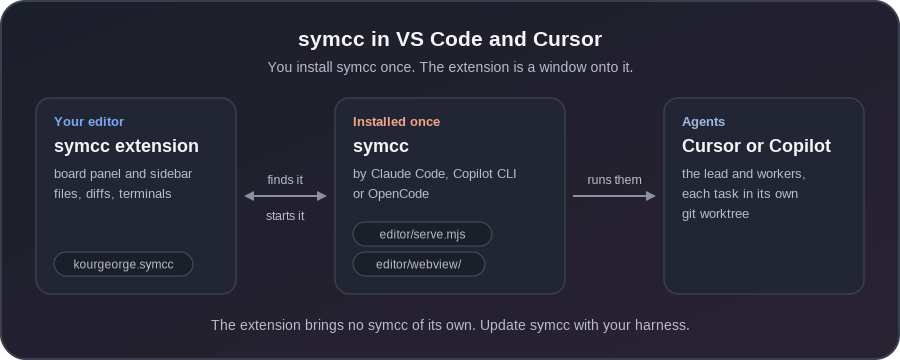
The extension is not in the VS Code Marketplace or Open VSX yet: build it from a clone and install the file, as in Install the symcc extension in VS Code or Cursor.
It needs VS Code 1.101 or newer, or a Cursor built on it: symcc needs Node 22.13 or newer, and these editors bring it. With an older editor, set symcc.nodePath to a Node 22.13 or newer.
How it finds symcc #
- First the folder in
symcc.pluginPath, when you set one. - Else the copies the harnesses installed: Claude Code's installed plugins, Copilot CLI's installed plugins and a folder you added as its marketplace, then OpenCode's plugin link and its plugin cache.
- It runs the newest copy whose editor files speak its protocol number (see The contract and its number). The status bar item's tooltip says which, for example "symcc 0.5.42 from Claude Code". symcc: Show the log lists every copy it found.
- When it finds none, the sidebar shows the install commands, Look again, and Choose the symcc folder.
- When the copy is too old (from before symcc had editor files) or too new for the extension, one message says what to update: the plugin, with your harness's update command, or the extension.
After you update symcc, run symcc: Restart symcc.
The agents #
- Cursor's (
"symcc.agents": "cursor", the default): setCURSOR_API_KEY, or use a login the Cursor SDK saved in~/.cursor/sdk/auth.json. The Cursor SDK's license keeps it out of symcc, so the first run downloads it from npm (pinned versions, each checked against its hash) into a cache folder:~/.cache/symccon Linux,~/Library/Caches/symccon macOS,%LOCALAPPDATA%\symcc\Cacheon Windows.SYMCC_CACHEmoves it, andSYMCC_NPM_REGISTRYnames an npm mirror. - GitHub Copilot's (
"symcc.agents": "copilot"): install the Copilot CLI and runcopilot loginonce (or setGH_TOKEN). symcc runs that CLI. If the CLI speaks another protocol than symcc's Copilot SDK, symcc says so, with the command that updates the CLI or symcc. - You can also pick the agents in the board's model menu. symcc restarts with them.
- Behind a proxy:
symcc.proxy, else the editor'shttp.proxy, elseHTTPS_PROXY.
Using it #
- symcc: Set up symcc in this project (or
/symcc-initto the lead) creates the board. Then tell the lead what you want done. - The panel has the Now, Board, Worktrees, Scouts and Memory pages. The sidebar shows the board at a glance, and its badge counts what needs you.
- On the Board page, a task shows what it has done so far, its change size, its timeline with who wrote each line, and its checker's report.
- When another window drives the board, the header says so. Drive here makes this window drive it.
- symcc: Message the lead sends the lead a message from anywhere.
- The settings are
symcc.agents,symcc.leadModel,symcc.workerModel,symcc.pluginPath,symcc.nodePath,symcc.proxyandsymcc.notify.
Building it #
The extension runs the plugin's editor/serve.mjs and shows its editor/webview/. Both are built from hosts/vscode/ and committed, like the Copilot CLI extension: sh scripts/build-editor.sh rebuilds them, and --check says whether the committed files are out of date. To work on the extension, open the repository in VS Code or Cursor and press F5 (symcc: Cursor extension): it runs this clone's hosts/vscode/dist/engine.mjs and its own webview build. How the extension and the plugin are released: Releasing.
Chat apps #
You can also talk to the lead from a chat app instead of the terminal.
Using symcc from Slack through DAM #
DAM runs a Claude Code session from a Slack thread (one thread is one session). DAM sets
PLATFORM_HARNESS=claude-code everywhere in its image, terminal windows too, so that alone
is not enough: symcc treats a session as a Slack session only when it also runs through
DAM's chat program (CLAUDE_CODE_EXECUTABLE ends in harness-claude), or once a Slack
message from you has arrived in it. A DAM terminal window gets plain board updates.
What works:
- Board news reaches Slack. DAM only sends to Slack what the lead posts with DAM's own tools; a plain reply is dropped. So in a DAM session every board update (merges, failures, and every "needs you": a worker's question, a review, more time, an answered investigation) ends with a line telling the lead to post its short reply to the Slack thread with DAM's reply tool (or DAM's post tool when there is no thread).
- The lead knows its job. DAM may skip the hook that gives the lead its guide, so each board update there also carries a short core of it: the reply shape and the main rules.
- Your Slack messages count as yours. A task the lead adds after your Slack message links back to your words, like a message typed at the terminal.
- A window that doesn't drive still takes tasks. If another window drives the board, the lead in this one still adds, changes, drops, approves and answers tasks as usual; the driving window runs the workers, scouts and merges. Use /symcc-drive only when you want this window to run the work itself.
What doesn't work yet: while DAM's session sleeps between messages, nothing runs on its own there: no scouts and no two-minute check. Work moves on when the next message wakes it.
From a chat app #
When you talk to the lead from a chat app (a Claude Code channel such as Telegram, Discord or Slack), symcc notices it from your message and switches to chat mode (DAM's Slack sessions use the same mode):
- Your messages count as yours, like a message typed at the terminal.
- Board news reaches the chat. A chat only sees what the lead sends with that chat's reply tool, so every board update that wants a reply (and the lead's guide) ends with a line telling the lead to post its short reply with the reply tool of that server (for example telegram).
- Questions are numbered text. The lead never opens a pop-up there (you can't see it): it asks in one sentence, numbers the choices and says "reply with the number or your own words". The question is still on the board too.
- Short views. The tasks list, the status, the board text and one task's page use one short
shape there: plain lines (no columns, rules or bars), one task per line like
T-5 running: test, try 2, 12m: title, "Needs you" first, the backlog only as a count, and at most 3,500 characters. A long text is split into pages: a "+N more" line says what is left, and when you say "more" (or "more tasks") the lead asks for the next page and posts it. For one task,/symcc-task T-5 more(orpage 2) gives the next page. A long question is shortened with "…", but it always keeps every numbered choice. - Plain words work. Slash commands may not reach symcc from a chat app, so the lead has the
same views as a tool: ask "status", "tasks", "what's running" or "show T-5" and it posts the same
text as
/symcc-status,/symcc-tasksor/symcc-task T-5. - The board as a picture. Ask for the board as a picture and the lead makes one web page
(
.symcc/board.html, no scripts or outside files, fine on a phone, light and dark) with the board tool'sview: "html"and sends the file with the chat's reply tool (Telegram's reply takes files). On the computer,/symcc-board htmlwrites the same page and opens it. - Back at the terminal. When you next type at the terminal, chat mode goes off.